


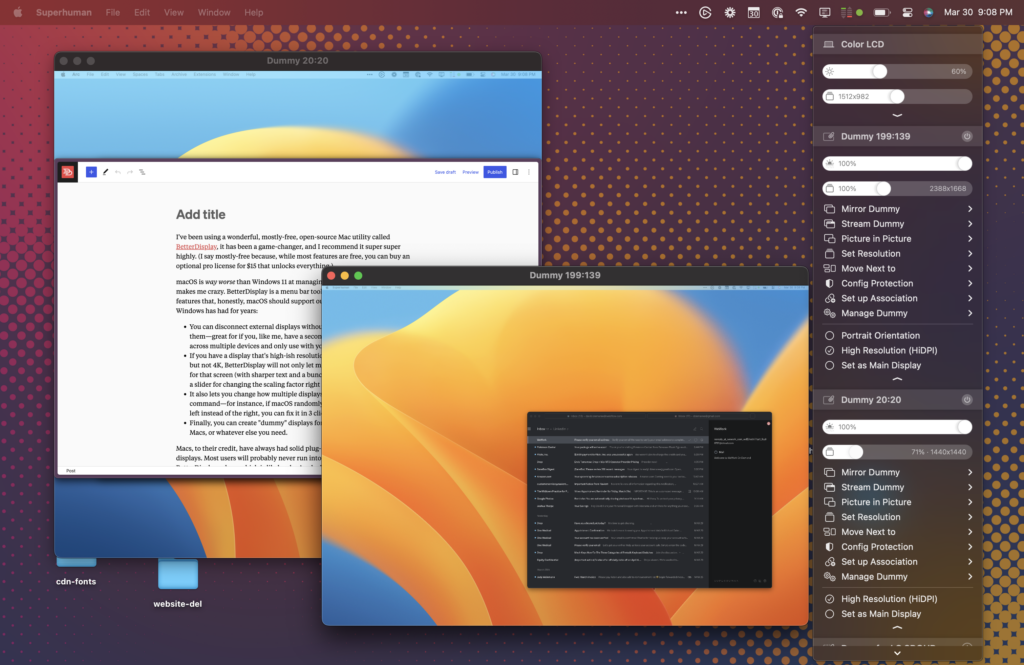
The problem with external monitors in macOS is immediate. It manifests itself the moment you connect the display and look at the text. This is especially noticeable on mid-range monitors that are not part of the Apple ecosystem.
In my case, it was a 27-inch Philips 275B1. It’s a good work monitor with accurate colors and a large diagonal. After connecting it to a MacBook Pro, the image looked fine, but the text did not. The letters lost their clarity, the lines merged, and reading quickly became annoying. This is not a matter of getting used to it or a subjective feeling — it’s a feature of how macOS works with such displays.
Why macOS doesn’t work well with external monitors
macOS has historically been tailored to Apple’s own displays. Retina screens have clearly defined parameters, and the system activates HiDPI modes without hesitation. External monitors operate according to different rules.
If the display does not meet the internal criteria of macOS, the system launches it in normal scaling mode. In this state, the interface is rendered at a lower resolution. Text loses its sharpness, fonts become soft, and prolonged work becomes a test for your eyesight.


This is especially noticeable on 4K monitors, where the physical pixel density allows for perfectly clear text, but the software simply does not take advantage of this.
What is HiDPI and why is it difficult to work without it?
HiDPI is a rendering method in which the system draws the interface at a higher resolution than the physical screen and then scales it to the actual size of the display. This is how Retina works.
As a result, fonts become clear, contours are smooth, and text looks as if it were printed. Your eyes stop straining, your reading speed increases, and working on a computer becomes comfortable.
When HiDPI is not available, even an expensive monitor looks worse than it actually is.

Searching for a HiDPI solution on macOS
I started looking for a way to enable HiDPI for an external display.
Manual commands in the terminal required precise calculations and patience. An error in one parameter broke the entire configuration.
Solutions with virtual displays worked, but complicated the system.
Hardware dongles took up ports and didn’t fit into my work setup.
As a result, I settled on BetterDisplay — a utility that allows you to control display modes directly, without complicated workarounds.
BetterDisplay: how I solved the problem of grainy text on an external monitor in macOS
The easiest and cleanest way to install it is via Homebrew:
brew install --cask betterdisplay
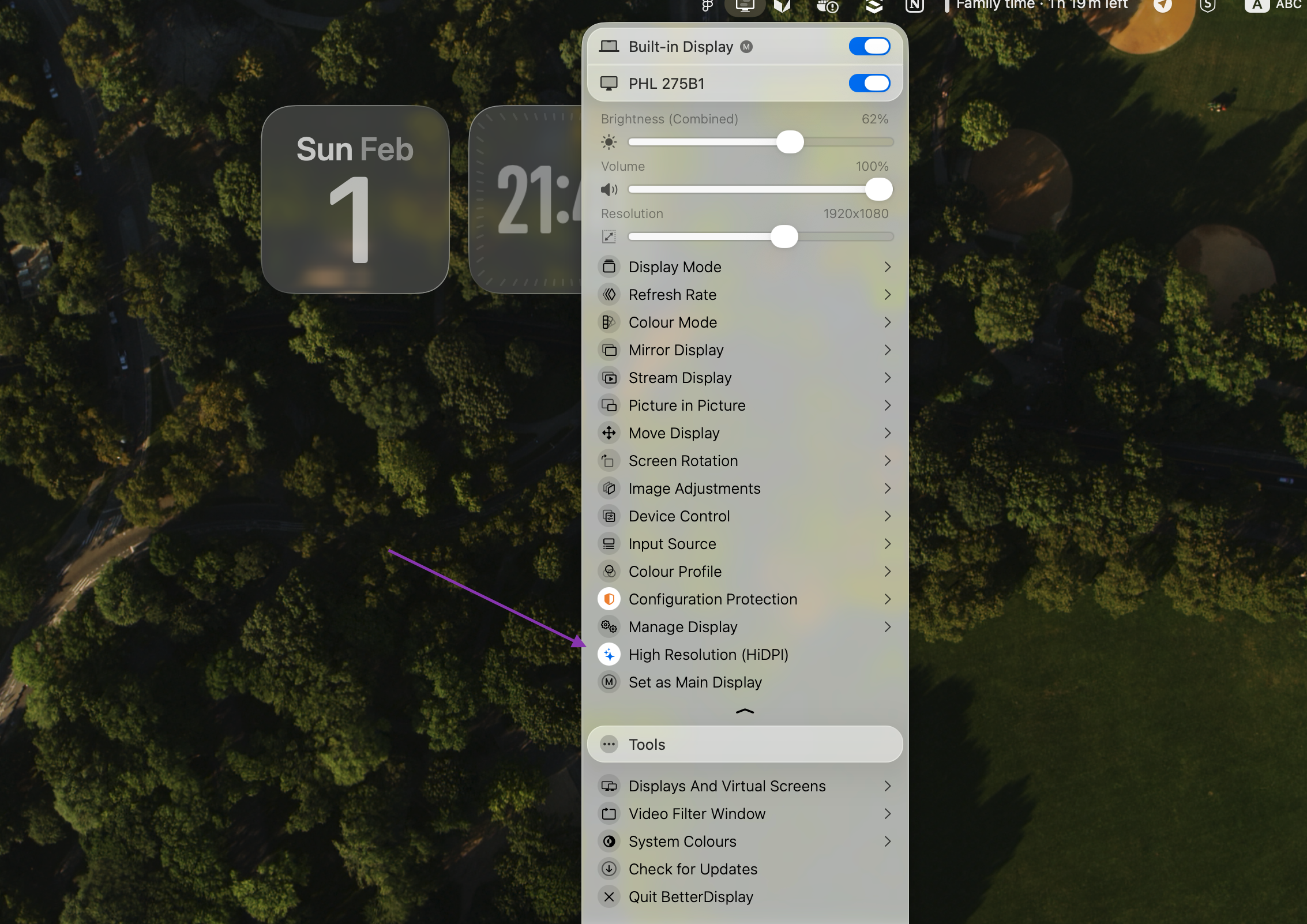
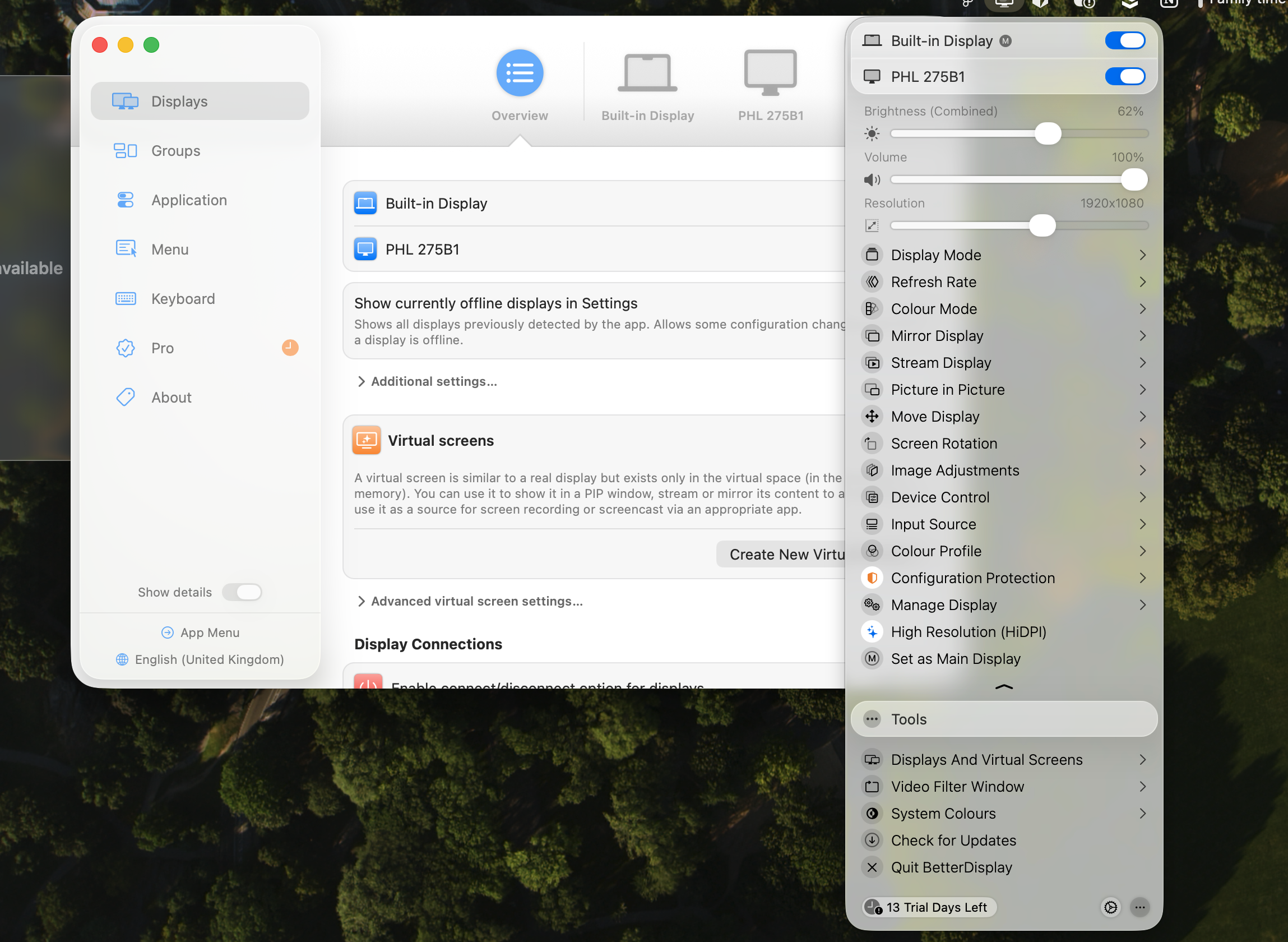
After the first launch, macOS will ask for standard permissions to work with displays and control brightness. Next, BetterDisplay appears in the menu bar. In the settings, simply activate High Resolution (HiDPI) for the external monitor.
Detailed documentation, a list of features, and technical details are available on GitHub:
https://github.com/waydabber/BetterDisplay#readme
The effect was instantaneous. The text on the Philips monitor became clear, even, and easy on the eyes. Just as I had expected it to be from day one.
BetterDisplay features that open up over time
After basic configuration, BetterDisplay ceases to be just a “HiDPI switch” and begins to unfold as a full-fledged display management tool.
The following features proved useful in everyday work:
- external monitor brightness control directly from macOS
- precise scaling to suit your own working style
- quick color profile switching
- software screen dimming for evening work
- virtual display support for complex scenarios
- hotkeys for any action
All of this works stably, without intrusive background processes and without a noticeable impact on performance.

Compatibility, price, and practical experience
BetterDisplay supports Apple Silicon and Intel Mac. The minimum macOS version is 12.4.
Basic features, including HiDPI, are available for free. The Pro version unlocks advanced features and costs $18. A trial period is available before purchase.
In my case, the MacBook Pro M2 Pro paired with Philips got everything I needed in the free version.

Conclusion
The problem of grainy text has completely disappeared. My eyes are no longer tired. Working on an external monitor is no longer annoying and has become comfortable again.
BetterDisplay turned out to be the very tool that neatly covers macOS’s weak spot when working with external displays. If you use a Mac and see blurry text on a large monitor, this utility deserves to be first on your list.
Frequently asked questions about BetterDisplay and external monitors on macOS
Why does macOS display blurry text on an external monitor?
macOS does not always activate HiDPI for third-party displays. If the monitor does not meet the internal parameters of the system, the interface is rendered in normal scaling mode. In this state, the text loses its clarity, even if the display itself is technically capable of producing a high-quality image.
Why is this problem rarely discussed?
Because for many users, it seems normal. People perceive grainy text as a feature of macOS or a compromise when working with external monitors. When a problem seems inevitable, it is rarely written about and even less often sought to be explained.
Why doesn’t Apple explain this officially?
Apple focuses on its own display ecosystem. Studio Display and Retina screens work perfectly without additional settings. Weaknesses in interaction with monitors from other brands are not part of the company’s official narrative, so the topic hardly ever appears in documentation or presentations.
Why isn’t BetterDisplay widely popular?
BetterDisplay is a utility without a marketing shell. It exists as a tool, not as a product brand. The main sources of information are GitHub and documentation. Such solutions are spread through recommendations, forums, and personal experience, rather than through high-profile reviews.
Does this mean that the problem only occurs with cheap monitors?
No. It also occurs with high-quality mid-range office models. For example, 27-inch monitors from Philips, LG, or Samsung often have a good matrix but do not automatically receive HiDPI. The price of the display does not guarantee correct scaling in macOS.
Why is this utility usually found too late?
BetterDisplay is usually sought after when the eyes are already starting to get tired. Requests arise from practical needs: blurred text, discomfort while reading, headaches after work. This is not a topic for general reviews, but an applied solution for a specific situation.
Is BetterDisplay safe to use?
The utility works within the capabilities of macOS, using available APIs to control displays. It does not modify system files or interfere with the kernel. That is why it is actively used by developers, designers, and people who work on a Mac with multiple monitors.
Who will find BetterDisplay particularly useful?
Those who:
- work on a MacBook with an external monitor
- read and write a lot of text
- spend several hours at a time in front of the screen
- use office or 4K displays not from the Apple line
In such scenarios, the difference in clarity becomes noticeable from day one.
Author: Mykola Kovalenko — Senior Frontend Developer, LabOS
LinkedIn: linkedin.com/in/mykola-kovalenko